How to replace every remote in your house with your phone
A brand-by-brand setup guide for controlling every TV in the house from your phone over your own Wi-Fi, including the part nobody explains, which is typing.
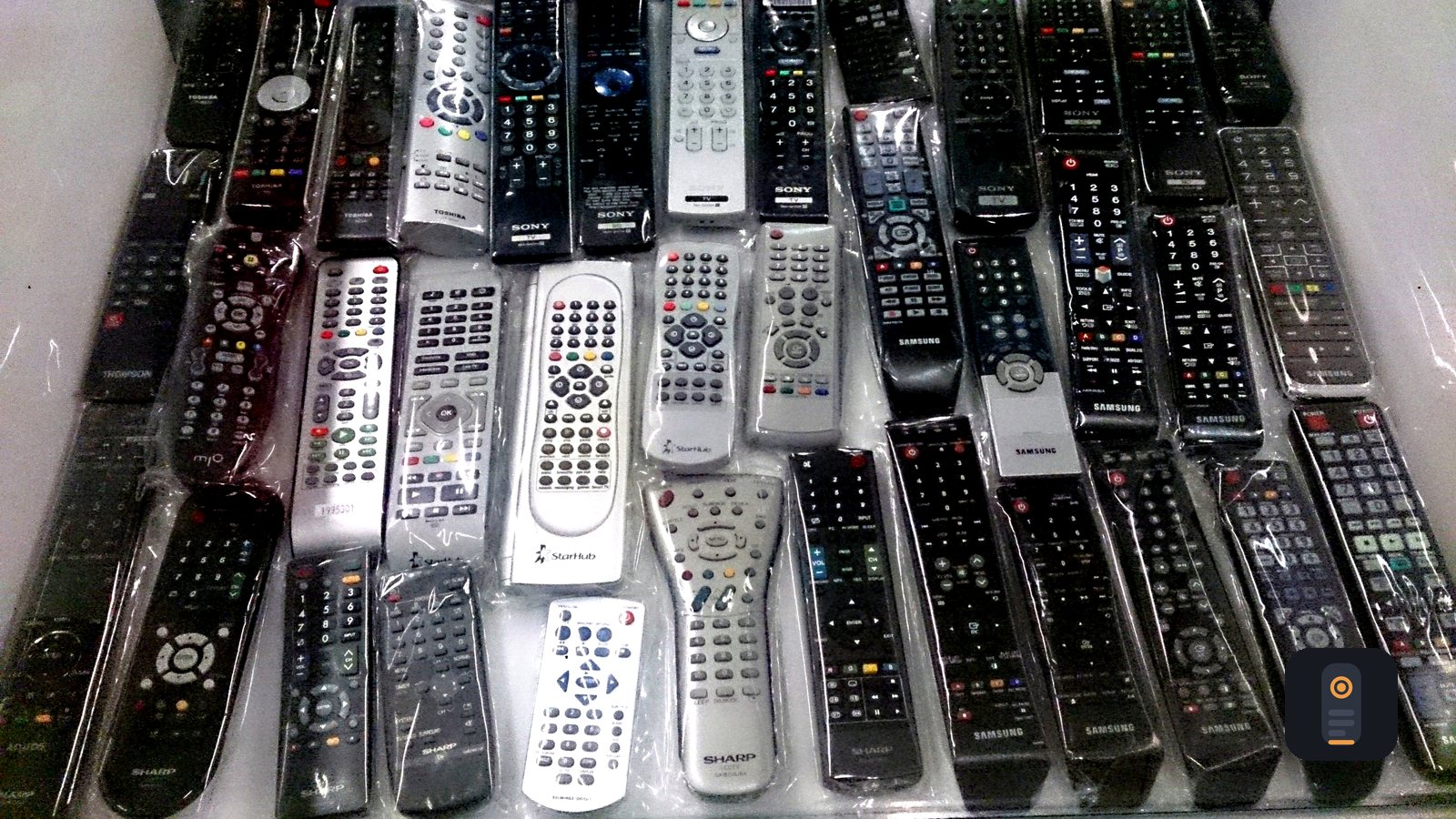
The remote is never where you left it, and when you do find it, the worst job in the house is waiting: typing a search query or a password one arrow press at a time. Your phone already has a keyboard, a screen, and a Wi-Fi radio. It can do the whole job, and the setup takes about a minute per TV.
Start with one network, not one app
Every trick below works because the phone talks straight to the TV over your home network. No hub, no cloud account, no infrared blaster clipped to the charging port. Put the phone and the TV on the same Wi-Fi and you have already done the hard part.
That also means nothing about your viewing leaves the house. Sofa sends commands directly to the TV on your network — no server in the middle, no account to create, nothing tracked. It runs on iPhone and Android, and it's free, no subscriptions, ever.
Brand by brand, because they don't behave the same
Roku TVs and Roku streaming players need no pairing at all. Open the remote, pick the device, and it responds. Roku also exposes its channel list, so you get the full grid with each app's real icon instead of a generic list.
Samsung Smart TVs from 2016 and newer work, and so do the 2014 and 2015 models. LG webOS TVs work. Vizio SmartCast TVs work. For all three, the first connection puts an approval prompt on the TV screen — accept it once with the physical remote you still have, and the phone reconnects on its own every time the TV comes back on.
If a TV won't answer, don't guess. Sofa keeps a connection log in Settings that shows what it actually tried and what came back, which usually points straight at the real problem: the TV is on a guest network, or it's fully powered down rather than in standby.
Save the rooms, then stop thinking about it
Add each TV once and give it a room. Living room, bedroom, garage. After that, switching sets is a tap instead of a discovery scan.
Two settings are worth doing on day one. Save each TV's MAC address so the power button can wake a set that's fully off, not just asleep. And try the different input styles — a classic D-pad, a swipe trackpad, and a number pad with channel up and down — because the fastest one genuinely depends on what you're doing.
The part that actually changes your evening
Typing. Open the Type sheet, write "that show with the chess prodigy" on your phone keyboard, and it lands in the TV's search box. Same for email addresses and passwords, which is where the arrow-press method stops being funny.
The keyboard is the whole reason to put a remote on your phone; everything else is a convenience, but typing is the thing the plastic remote genuinely cannot do.
One-tap app launching finishes the job: jump to Netflix, YouTube, Disney+ or Prime Video without walking the cursor across a home screen.
Do this for every set in the house and the drawer of black plastic becomes a backup rather than a daily tool. The next step, honestly, is forgetting where the drawer is. Browse the rest of our apps if you want more of the same idea: local, private, free.
Related posts
-
How-to
Lost the TV remote? How to control your TV from your phone
Sep 25, 2026
-
Product
Sofa Is Live on Google Play — And What Shipping Fast Actually Looks Like
Aug 31, 2026
-
How-to
How to check your squat form with nothing but your phone
Sep 05, 2026
Recent posts
-
How-to
How to photograph Diwali lights at night with your phone
Nov 01, 2026
-
How-to
How to host a Diwali party at home
Oct 31, 2026
-
How-to
How to build a 20-minute bodyweight workout that keeps working
Oct 30, 2026
-
How-to
How to hit a third shot drop in pickleball
Oct 29, 2026
-
How-to
How to pick a health insurance plan during open enrollment
Oct 28, 2026
-
How-to
How to free up storage on your phone in 15 minutes
Oct 27, 2026
0 comments
No comments yet — be the first.
Leave a reply
Sign in with Google to join the conversation. We require a quick sign-in to keep comments spam-free.
Sign in with Google to comment