Lost the TV remote? How to control your TV from your phone
Your phone can run a smart TV over Wi-Fi in minutes. The settings to check on Roku, Samsung, LG and Vizio, what to do if the TV is fully off, and the last resort.
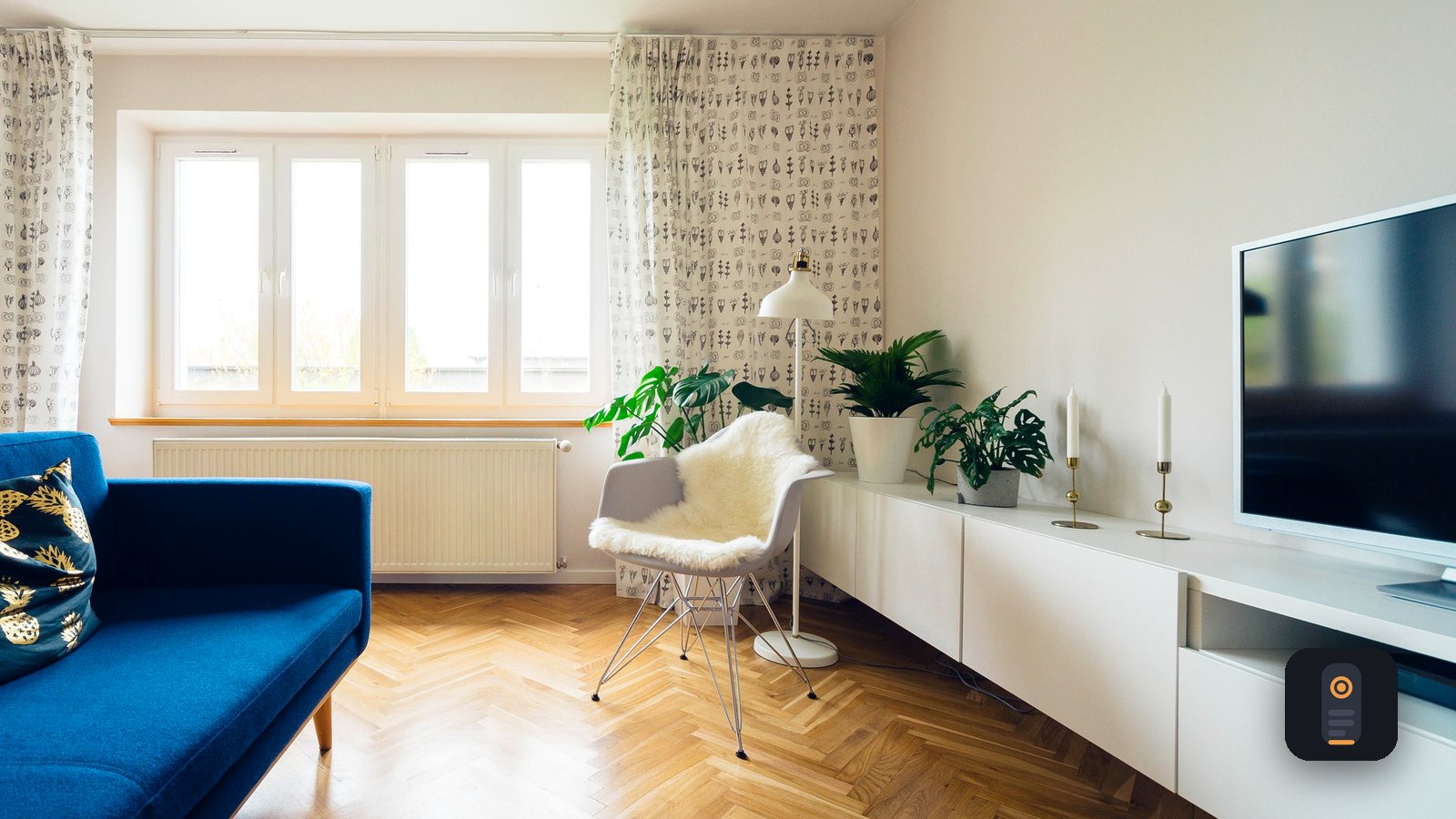
The couch cushions have been searched twice and the show starts in five minutes. If you have a smart TV and a phone on the same Wi-Fi, you almost certainly don't need the remote tonight. Here is the emergency order of operations.
Step one: same Wi-Fi, or nothing works
Phone remotes talk to the TV over your home network. That means the phone and the TV must be on the same Wi-Fi network, not the guest network, not a mesh "IoT" network kept separate on purpose, and not your phone's mobile data.
Quick checks: turn off any VPN on the phone for now, and on iPhone allow the remote app's Local Network permission, or it can't see the TV.
Once you're on the same network, a remote app should find the TV in a list. If it doesn't, the TV is probably off completely, or its network control setting is off.
Brand by brand: the settings that matter
The catch in an emergency is that some of these settings live in menus you need a remote to reach. If they're off tonight, remember to flip them once the remote turns up.
Roku. Roku TVs and Roku players respond to phone apps without pairing. The setting to check is under Settings > System > Advanced system settings > Control by mobile apps, where network access should be set to Enabled. On Roku TVs, turning on Fast TV Start keeps the network awake in standby, so a phone can wake it.
Samsung. The first time a phone app connects, the TV shows an approval prompt. You'll need to accept it, which is tricky without a remote. The TV's own buttons can often select Allow. To let a phone switch the TV on, look for Power On with Mobile under Settings > Connections > Network > Expert Settings (exact paths vary by year).
LG. webOS TVs also ask for a one-time approval on screen. For waking the TV by phone, look for TV On With Mobile and switch on Turn on via Wi-Fi. On recent models it's under General > Devices > External Devices; on older ones, under Connection.
Vizio. SmartCast TVs ask for approval, often with a PIN shown on screen. Under System > Power Mode, Quick Start keeps the TV reachable in standby, while Eco Mode saves power but usually means a phone can't wake it.
Standby is a TV that's listening; fully off is a TV that isn't, and no app on earth can talk to a TV that isn't listening.
If the TV is fully off
Most smart TVs, when "off," are really in standby and still listening on the network. A phone remote can switch those on. A TV that's in a deep power-saving mode, or that lost power, isn't listening.
Wake-on-LAN helps here. It sends a special "magic packet" to the TV's MAC address, a hardware ID you can find in the TV's network or About settings. Caveats worth knowing:
- The TV must still be plugged in. Nothing wakes an unplugged set.
- Support varies by brand and model, and it often only works if the relevant setting above is on.
- Some TVs drop off the network after a while in standby, so waking them works right after switching off but not hours later.
- A wired Ethernet connection is often more reliable than Wi-Fi for waking.
The last resort: the buttons on the TV
Every TV still has physical controls, usually a single button or small joystick on the back, under the bottom edge, or behind the logo. It typically handles power, input, and volume. On many models, one press brings up a small on-screen menu and a longer press powers the set off.
For everything after that, Sofa turns your phone into the remote. It works with Roku with no pairing, and with Samsung, LG and Vizio after a one-time approval on the TV, then reconnects automatically. You get a D-pad, a swipe trackpad, a number pad, volume and power, and a real keyboard for search boxes. If you save the TV's MAC address, the power button can wake a set that's fully off, as long as the TV supports it. If a TV won't respond, the connection log in Settings shows what happened. It's free, with no account, on iPhone and Android. For the calm, non-emergency version of this setup, see replacing every remote in your house with your phone.
And when the real remote does turn up, it will be somewhere you already checked.
Recent posts
-
How-to
How to make a photo-a-day timelapse of your kid growing up
Oct 03, 2026
-
How-to
How to appeal a denied health insurance claim
Oct 02, 2026
-
How-to
How to settle up money after a poker or card night, fairly and fast
Oct 01, 2026
-
How-to
How to plan a national park road trip that isn't all driving
Oct 01, 2026
-
How-to
How to start strength training at home with no equipment
Sep 30, 2026
-
AI & Trends
How to tell if an app is selling your data
Sep 30, 2026
0 comments
No comments yet — be the first.
Leave a reply
Sign in with Google to join the conversation. We require a quick sign-in to keep comments spam-free.
Sign in with Google to comment