How to photograph fall colors with your phone
Why gray days beat sunny ones, how to backlight a leaf, the cheap polarizer trick, exposure lock, and a one-tree project that runs all season.
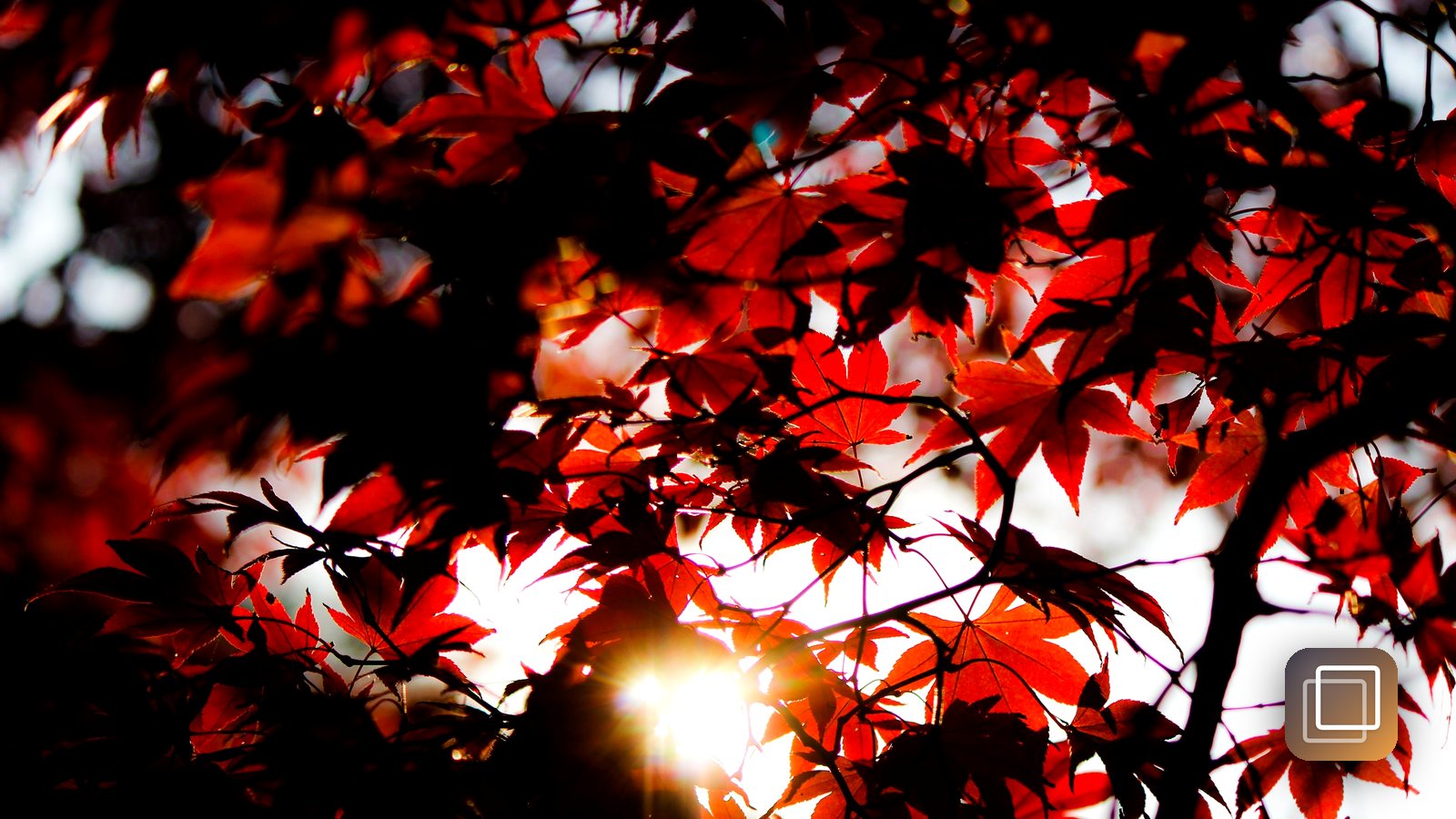
You stand under a maple that looks like it's on fire, take a photo, and the phone hands back something flat and brownish. The tree didn't change. The light did, and your camera guessed wrong. Fall color is one of the easiest subjects to shoot well on a phone once you know which few things the camera can't figure out on its own.
Pick the right light (it's usually not sunshine)
Bright midday sun is the enemy of autumn color. It creates hard shadows, washes out reds, and puts glare on every waxy leaf.
- Overcast days are your friend. A gray sky acts like a giant softbox. Colors look deeper and more even, and the camera doesn't have to fight bright highlights next to dark shade. Keep the gray sky out of the frame, though; shoot into the trees, not up at them.
- Right after rain. Wet bark goes nearly black and makes yellows and oranges pop. Wet leaves are shiny, which is where the polarizer below helps.
- Golden hour, carefully. The hour after sunrise or before sunset warms everything. Gorgeous, but it can push yellows toward orange, so take a few frames and compare.
Backlight a leaf, then lock the exposure
The most glowing fall photos are taken with the sun behind the leaves. Light passing through a thin leaf lights it up like stained glass.
- Stand so the sun is behind the canopy, and use the trunk or a branch to block the sun itself from hitting your lens.
- Get close to one branch and let the background fall into blur.
- Tap the brightest leaf, then touch and hold until you see AE/AF Lock on an iPhone. Focus and exposure stop jumping around, and they stay locked for several shots.
- Drag the exposure slider down a little. Slightly darker keeps the color saturated. You can lift shadows later; you can't bring back a blown-out leaf.
Shooting in a dim forest? Phones with Night mode (iPhone 11 and later) will brighten shady trails on their own, but brace against a tree so the long exposure stays sharp.
Most fall photos fail because of light and exposure, not because the phone isn't good enough.
The polarizer trick
A clip-on circular polarizing filter costs less than a pizza and does something no edit can. Rotate it while watching the screen and you'll see glare melt off wet leaves and the water in a pond turn from white sheen to clear. Blue sky behind a tree darkens too, which makes orange foliage stand out.
Two cautions. It works best with the sun off to your side, not directly behind or in front. And it only fits one lens at a time, so stick to that lens while it's clipped on. No filter? Polarized sunglasses held tight over the lens work as a rough test.
Shoot one tree all season
The best autumn project is the least dramatic: one tree, same spot, every day from green to bare. Pick a tree you pass daily (your street, your yard, the walk to the station). Stand on a crack in the pavement or next to a fence post so your position is repeatable, and shoot at roughly the same time each day. Three to five weeks of frames turns into a timelapse of the color change that no single photo can match. Our guide to building a photo-a-day habit covers keeping the streak going.
GhostFrame is made for exactly this. It fades yesterday's photo over the live camera, and its live ghost guide gives you a match score and a haptic lock when your tree is lined up again. Set a daily reminder at your usual walk time, and export the season as a timelapse with auto-align steadying every frame. Photos stay on your iPhone, and it's free, no subscription.
Start this week, while the leaves are still mostly green. The best frame in the video will be the one you almost skipped.
Videos
Watch this post as a reel

Related posts
-
How-to
How to make a photo-a-day timelapse of your kid growing up
Oct 03, 2026
-
How-to
How to build a photo-a-day habit that survives past January
Sep 10, 2026
-
How-to
How to use your phone offline while traveling
Oct 14, 2026
Recent posts
-
How-to
How to learn a trade as an adult (electrician, plumber, HVAC, welding)
Oct 20, 2026
-
How-to
How to watch a game later without spoilers
Oct 19, 2026
-
How-to
How to warm up before lifting in 8 minutes (and what to skip)
Oct 18, 2026
-
How-to
How to spot a scam text before you tap
Oct 18, 2026
-
How-to
How to steam milk for a latte at home
Oct 17, 2026
-
How-to
How to compare Medicare plans for a parent during open enrollment
Oct 16, 2026
0 comments
No comments yet — be the first.
Leave a reply
Sign in with Google to join the conversation. We require a quick sign-in to keep comments spam-free.
Sign in with Google to comment