How to set up a phone for an aging parent
Bigger text, a working Medical ID, the right people one tap away, fewer scam calls, and location sharing only with your parent's say-so. For iPhone and Android.
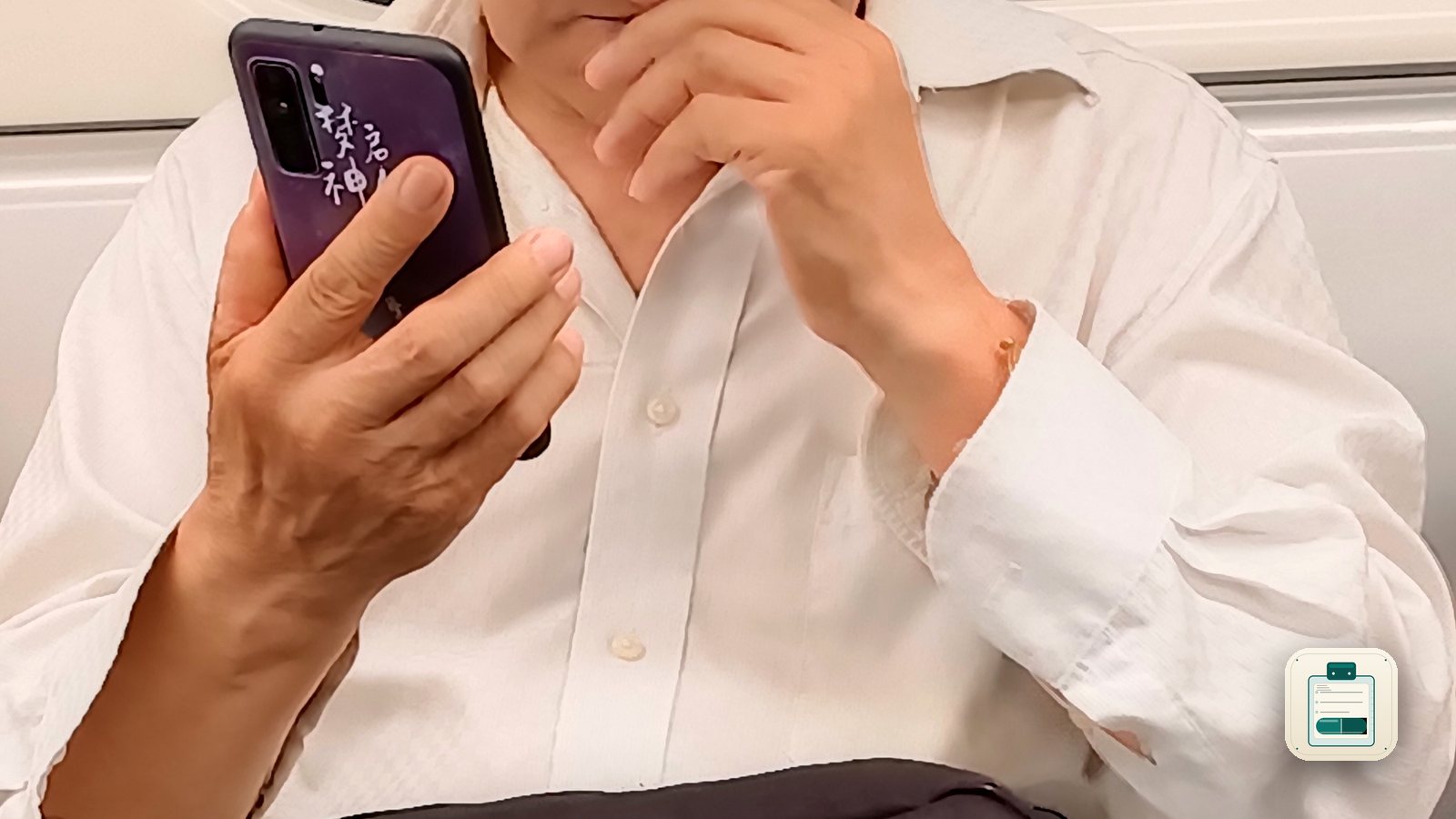
When a parent says "I don't like this phone," they usually mean something specific. The text is too small. An app moved. A banner popped up and they tapped it by accident. The phone rang four times today and three of the calls were scams. A good setup fixes those problems without taking the phone away from them.
Do it together, with the phone in their hands. Ask what bothers them before you change anything, and explain each change as you make it. It is their phone, and the settings should match how they want to use it.
Make it readable and calm
- Bigger text. On iPhone, go to Settings, then Display & Brightness, then Text Size, and turn on Bold Text too. On Android, look under Settings, then Display, for font size and display size (the exact names vary by manufacturer). Go one step bigger than seems necessary.
- Fewer surprises. Turn off notifications for apps they don't use. Remove home screen widgets and apps they never open. A home screen with six things on it is easier than one with forty.
- A simpler mode, if they want it. iPhone has Assistive Access, a pared-down interface with large buttons for calls, messages, camera and photos. Many Android phones have an "easy mode" or simple home screen. Try it with them before turning it on, because some people find it helpful and others find it patronizing.
Put the right people one tap away
Add the four or five people they call most as favorites, and put the phone and messages apps on the first screen where they always are.
Then set up the emergency information, which matters most and takes ten minutes:
- iPhone: In the Health app, fill in the Medical ID with conditions, medications, allergies and emergency contacts, and make sure "Show When Locked" is on. Apple notes this lets first responders see it without the passcode.
- Android: Look for Emergency information or the Safety & emergency settings (on Pixel phones, the Personal Safety app). Add medical info and emergency contacts there.
The best setup is one your parent could describe back to you. If they don't know a setting exists, it isn't really theirs.
Filter the scam calls
Scammers target older adults on purpose, and the phone is how they get through.
- iPhone: In the Phone app's settings, find the option for unknown callers. Setting it to silence sends calls from numbers not in their contacts straight to voicemail. Make sure doctors' offices and pharmacies are saved as contacts first, or those calls will be silenced too.
- Android: In the Phone by Google app, go to Settings, then Caller ID & spam, and turn on spam filtering. Other manufacturers have similar settings in their phone apps.
Then have the conversation that settings can't cover: nobody legitimate asks for gift cards, and it is always fine to hang up and call back on a known number.
Share location only with consent
Location sharing (Find My on iPhone, or location sharing in Google Maps on Android) can be a real comfort for a parent who drives or walks alone. It should be their decision. Explain who will see it and why, show them how to turn it off, and respect it if they say no. Trust lasts longer than any setting.
While you have the phone out, the prescription bottles are probably nearby. On your own iPhone, Caregiver Ledger can scan each label to build their medication list, then print it with recent symptoms as a doctor-visit packet. It's free, needs no account, and stays on your phone. If a visit is coming up, see how to prepare for a parent's doctor appointment.
Check back in a month and ask what's still annoying. A phone setup, like most things with parents, gets better on the second pass.
Recent posts
-
How-to
How to capture what a master tradesperson knows before they retire
Oct 12, 2026
-
AI & Trends
Measuring an app without tracking people
Oct 11, 2026
-
How-to
How to run a pickleball round robin for a group of friends
Oct 10, 2026
-
How-to
How to journal your day in sixty seconds
Oct 09, 2026
-
How-to
Is the America the Beautiful pass worth it? Do the math first
Oct 08, 2026
-
How-to
How to do a proper push-up (and the easier versions that still count)
Oct 07, 2026
0 comments
No comments yet — be the first.
Leave a reply
Sign in with Google to join the conversation. We require a quick sign-in to keep comments spam-free.
Sign in with Google to comment