How to find and cancel the subscriptions you forgot about
The exact places subscriptions hide on iPhone, Android, PayPal and your card statement, plus a 15-minute quarterly audit that keeps them from piling up again.
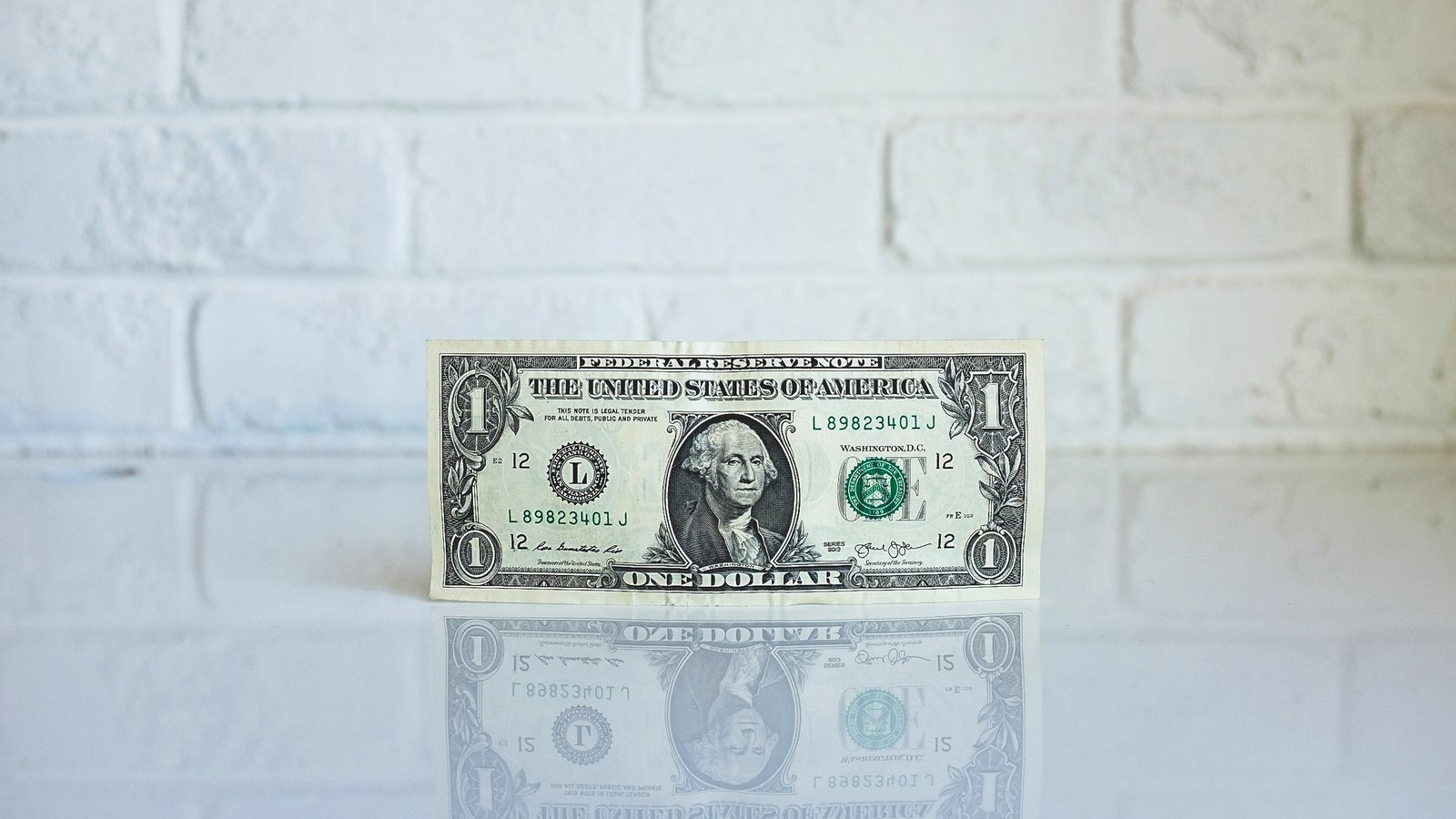
The charge is usually small enough to miss: $4.99 for a photo editor you used once on vacation, $9.99 for a free trial that quietly became a plan. Forgotten subscriptions survive because they are spread across four or five different places, and no single screen shows all of them. Here is where to look, in order.
Start with the app stores
Subscriptions bought inside an app are billed by Apple or Google, not by the developer, so this is where most forgotten ones hide. Deleting the app does not cancel them.
On iPhone or iPad:
- Open Settings and tap your name at the top.
- Tap Subscriptions.
- Tap the subscription, then Cancel Subscription (you may need to scroll down).
If there is no Cancel button, or you see an expiration message in red, it is already canceled. The Expired list below the active ones is worth a glance too, because it reminds you what you signed up for once.
On Android:
- Open the Google Play Store app.
- Tap your profile icon, then Payments & subscriptions, then Subscriptions.
- Pick the subscription and tap Cancel subscription.
In both cases you normally keep access until the end of the period you already paid for, so there is no reason to wait for a "better" day to cancel.
Then the places the app stores can't see
Anything you signed up for on a website is billed directly to your card or through a payment service.
PayPal. On the website, go to Settings, then Payments, and look for automatic payments or subscriptions and saved businesses. In the app, automatic payments are listed under Wallet. Canceling there stops PayPal from paying, but it may not close the account with the merchant, so cancel with the company as well.
Card and bank statements. Download the last three months and search for the same amount repeating on the same day each month. Watch for short or unfamiliar merchant names; billing descriptors are often abbreviations of the company, not the product.
Your email. Search your inbox for: receipt, renewal, your subscription, trial ends, auto-renew, membership and invoice. This turns up the web sign-ups that never touched an app store, plus annual plans that only bill once a year and are the easiest to forget.
A free trial is a subscription with a delayed start date, so cancel it the day you sign up and use the free period anyway.
The trial trap, and how to stay ahead of it
Most apps let you cancel a trial immediately and still use it until the trial ends. Doing that on day one removes the risk of forgetting. If you'd rather decide later, put a calendar reminder two days before the trial converts, with the settings path in the note so you don't have to look it up again.
Annual plans deserve the same treatment. Set a reminder a week before each renewal date, when you can still decide calmly instead of discovering the charge afterward.
A 15-minute quarterly audit
Put a recurring event on the first weekend of each quarter and run this list:
- App Store or Google Play subscriptions page: 3 minutes.
- PayPal automatic payments: 2 minutes.
- Card statement search for repeating charges: 5 minutes.
- Email search for "renewal" and "trial ends": 3 minutes.
- For anything you keep, write down what it costs per year, not per month: 2 minutes.
That last step changes decisions. A $7.99 monthly app is almost $96 a year, and seeing that number next to how often you actually open it is usually enough to decide.
We have written about why we think small tools should not need a monthly fee at all in the case against subscriptions for small apps. Every app on our apps page is free with no subscription, so none of them will ever show up in this audit.
Fifteen minutes four times a year is a small price for knowing exactly what you pay for, and why.
Recent posts
-
How-to
How to make a photo-a-day timelapse of your kid growing up
Oct 03, 2026
-
How-to
How to appeal a denied health insurance claim
Oct 02, 2026
-
How-to
How to settle up money after a poker or card night, fairly and fast
Oct 01, 2026
-
How-to
How to plan a national park road trip that isn't all driving
Oct 01, 2026
-
How-to
How to start strength training at home with no equipment
Sep 30, 2026
-
AI & Trends
How to tell if an app is selling your data
Sep 30, 2026
0 comments
No comments yet — be the first.
Leave a reply
Sign in with Google to join the conversation. We require a quick sign-in to keep comments spam-free.
Sign in with Google to comment