
Web app · Productivity
Approveit
An approval queue for the agents that act on your behalf
Log what an agent wants to do — send the email, book the flight, move the money — then approve or deny it on your schedule with a note. Standing rules tell you what you already decided, and the paper trail records who asked, what you said and how long you took. Free, no install.
Stored in your browser only. Nothing you do in the web version is sent to our servers. Clear your browser data and it's gone — so export a backup from the in-app menu if you want to keep it.
This app is a community proposal.
Try the full browser version now. We build the iPhone and Android app once 100 people upvote it.
We'll email you once, when it ships. Unsubscribe anytime.
In your browser
What you can do in Approveit on the web
Queue with one-tap decisions
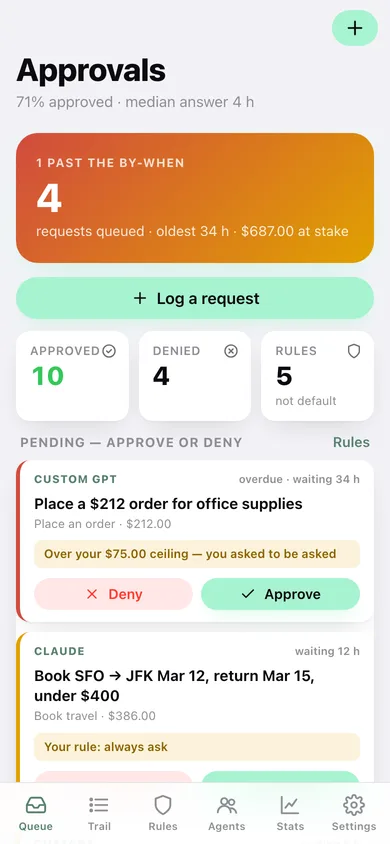
Pending requests sit at the top with the agent, the amount at stake and how long they have been waiting; Approve and Deny are right on the card.
Eleven kinds of action
Send an email, message a person, place an order, move money, book travel, book time, publish, share or delete data, deploy code, sign something, or anything else.
Standing rules
For each action type decide Go ahead / Always ask / Never, and set a money ceiling above which you always want to be asked — the rule is shown next to every request.
A real paper trail
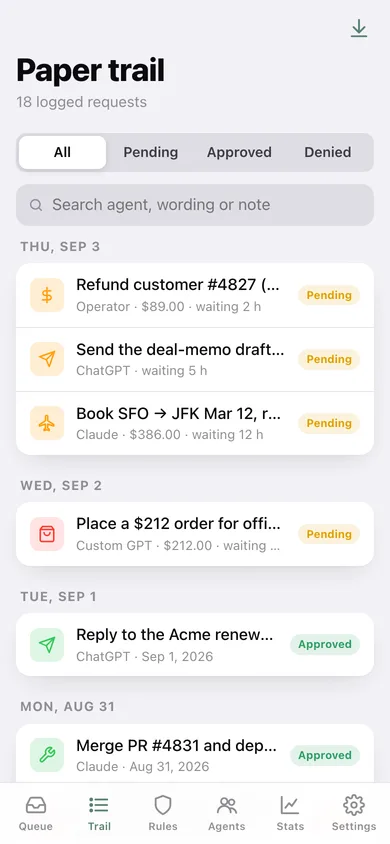
Every decision keeps the note you wrote, the timestamp and how many hours you took; search it, filter it, and export the lot as CSV.
Per-agent trust record
Approval rate, money signed off and pending count per agent — the argument for promoting one to “Go ahead” or telling another to stop asking.
Decision stats
Requests per day, approve/deny donut, median time to answer, what they ask for most and a 12-week heatmap.
Screens
Every screen, rebuilt for the browser
-
1
Queue
How many requests are waiting, the money at stake, and Approve/Deny on every pending card.
-
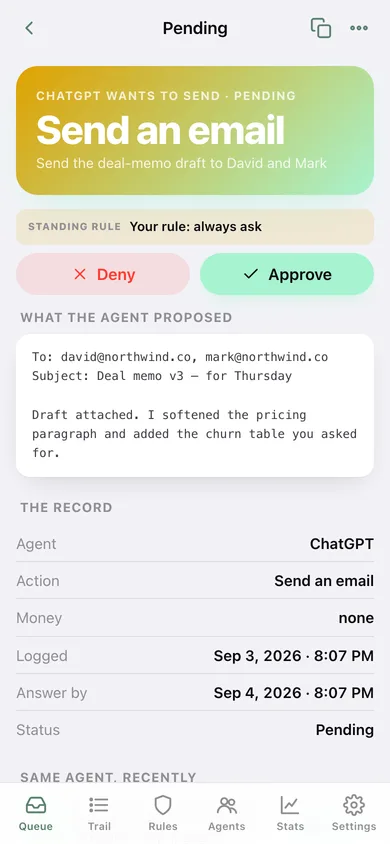
2
One request
The full proposal, your standing rule, the decision buttons and the same agent's recent history.
-
3
Log a request
Capture what the agent proposed: action type, agent, one-liner, amount, full text and an answer-by window.
-
4
Standing rules
Go ahead / always ask / never for each action type, plus money ceilings.
-
5
Paper trail
Every request by day, filtered by status and searchable, with CSV export.
-
6
Agents
Approval rate, pending count and money signed off for each agent that asks.
-
7
Decisions
Requests per day, how you answer, what they ask for and a 12-week heatmap.
-
8
Settings
Default answer-by window, overdue flagging, CSV and JSON export, erase everything.
Try it with sample data: Loads eighteen agent requests across the last three weeks — four still pending (an email, a $386 flight, a $212 supplies order and an $89 refund) and fourteen already decided with the notes you left. You can start fresh at any time.
Ready? It's free.
No account, no install, no subscription. Everything you do stays in this browser.
Your say
What should Approveit do? Tell us before we build it.
Tell us what to build next.
Comments need a free Google sign-in, so every one is from a real person.
Sign in with Google to commentNo comments yet — be the first to say what this app should do next.
Questions
Is the web version of Approveit free?+
Yes. Every screen is free to use: no subscription, no in-app purchases, no account.
Do I need an account?+
No. Open Approveit and start using it right away. Sign in with Google only if you want to upvote an app, save it to your list, or leave a comment.
Where is my data stored?+
Only in this browser's local storage. Nothing you enter is sent to our servers, so we can't see it, back it up, or restore it. Clearing site data, a private window, or another device starts empty. Export a backup from the in-app menu to keep it.
Is there a Approveit app for iPhone or Android?+
Not yet. Approveit is a community proposal: the browser version is complete, and we build the iPhone and Android app once 100 people upvote it. Upvoters get one email when it ships.